Installation Guide

How to Install Verlae

Verlae installs straight onto your phone or computer like a normal app — no app store needed. It takes about thirty seconds.

📱

iPhone & iPad

⚠️ Must use Safari. Apple does not allow installing from Chrome or other browsers on iPhone and iPad. If you opened this link in Chrome, copy the link and open it in Safari first.
  1. Open the Verlae link in Safari
  2. Tap the Share icon at the bottom of the screen — it looks like a square with an arrow pointing up ↑
  3. Scroll down in the menu and tap "Add to Home Screen"
  4. Tap "Add" in the top right corner to confirm
  5. Find the Verlae icon on your home screen and open it from there each time
🤖

Android

  1. Open the Verlae link in Chrome
  2. Tap the three-dot menu in the top right corner of the browser
  3. Tap "Add to Home screen" or "Install app"
  4. Tap "Add" or "Install" to confirm
  5. Find the Verlae icon on your home screen and open it from there
💻

Computer (Windows & Mac)

  1. Open the Verlae link in Chrome or Edge
  2. Look for an install icon in the address bar — it looks like a small monitor or a plus (+) symbol on the right side
  3. Click the install icon, then click "Install" to confirm
  4. Verlae opens in its own window — you can pin it to your Taskbar (Windows) or Dock (Mac) for quick access
No install icon? Click the browser menu (three dots, top right) and look for "Install Verlae" or "Add to Desktop".
What you'll see
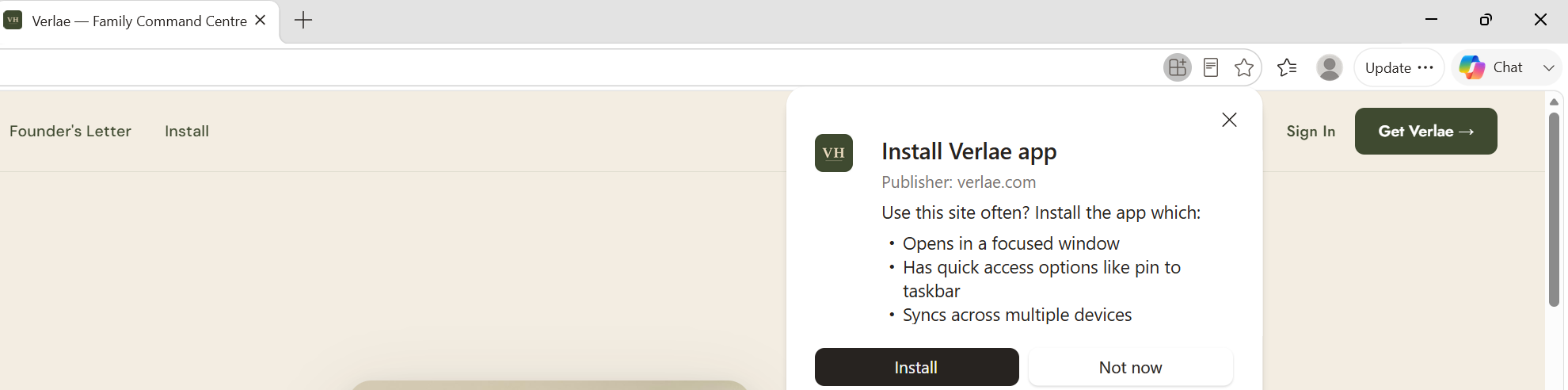
Install Verlae app prompt in browser — shows install dialog with 'Opens in a focused window', 'Has quick access options like pin to taskbar', 'Syncs across multiple devices'

The install prompt appears automatically in Chrome or Edge — just click Install and you're done.

Once installed, Verlae opens full screen — just like any other app.

No browser bar. No distractions. Just your family's command centre, right there on your screen.

If you get stuck at any point, reach out and we'll help — support@verlaehome.com

Create Your Account

Already have an account? Sign in here